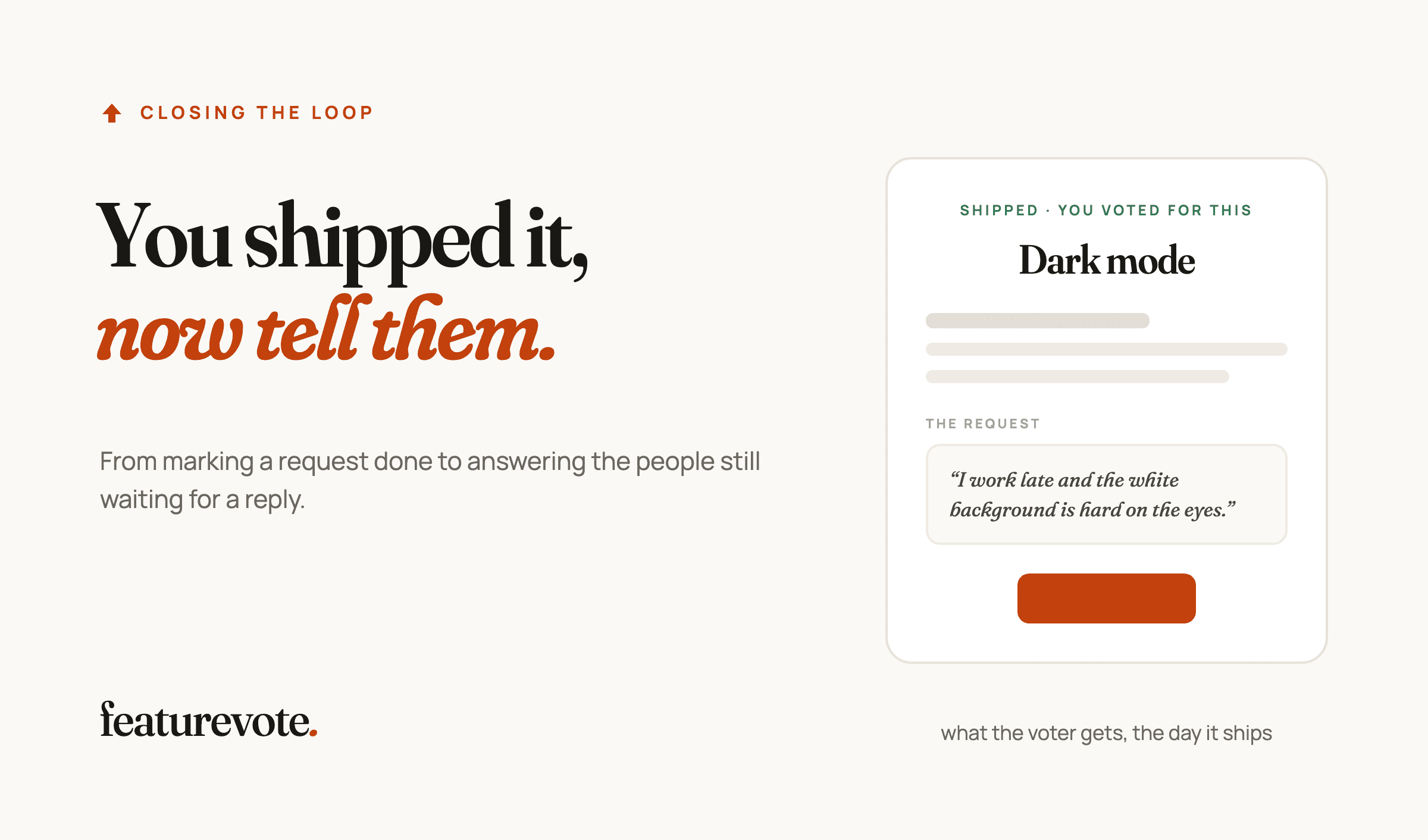
Most feature requests end with a status change nobody sees. Here is how to close the feedback loop in Featurevote, from marking a request done to answering the people still waiting.
Someone asked for dark mode in March. Four other people voted for it. In September you shipped it, moved the card to Done, and got on with the next thing. None of those five people found out.
That is how most feature requests end. The status changes on a board nobody is watching, and the people who asked keep using the product without knowing their idea is in it. This post walks through what happens after you mark a request done in Featurevote, and who hears about it.
Mark it done and keep their words
When you move a request to Done, a Complete Feature panel opens. At the top is the original request, read-only. It stays on the post exactly as the customer wrote it.
Under it you write the release note, a title and a short body in your own words. That note shows on the post under Shipped, goes into the email to voters, and becomes this request's part of your next changelog. If you leave it empty, the request itself is used instead. If you'd rather not start from a blank field, Generate writes a first draft you can edit.
The people who voted get an email
Notify Voters is ticked by default. When you click Mark as Completed, everyone who voted for the request and left an email address gets a short email. The person who posted the request is one of them if they left an email, because posting a request counts as their vote.
The email leads with your release note. Under it, it quotes the original request, so the reader remembers what they asked for and why they are getting this. The subject line uses their title, not yours.
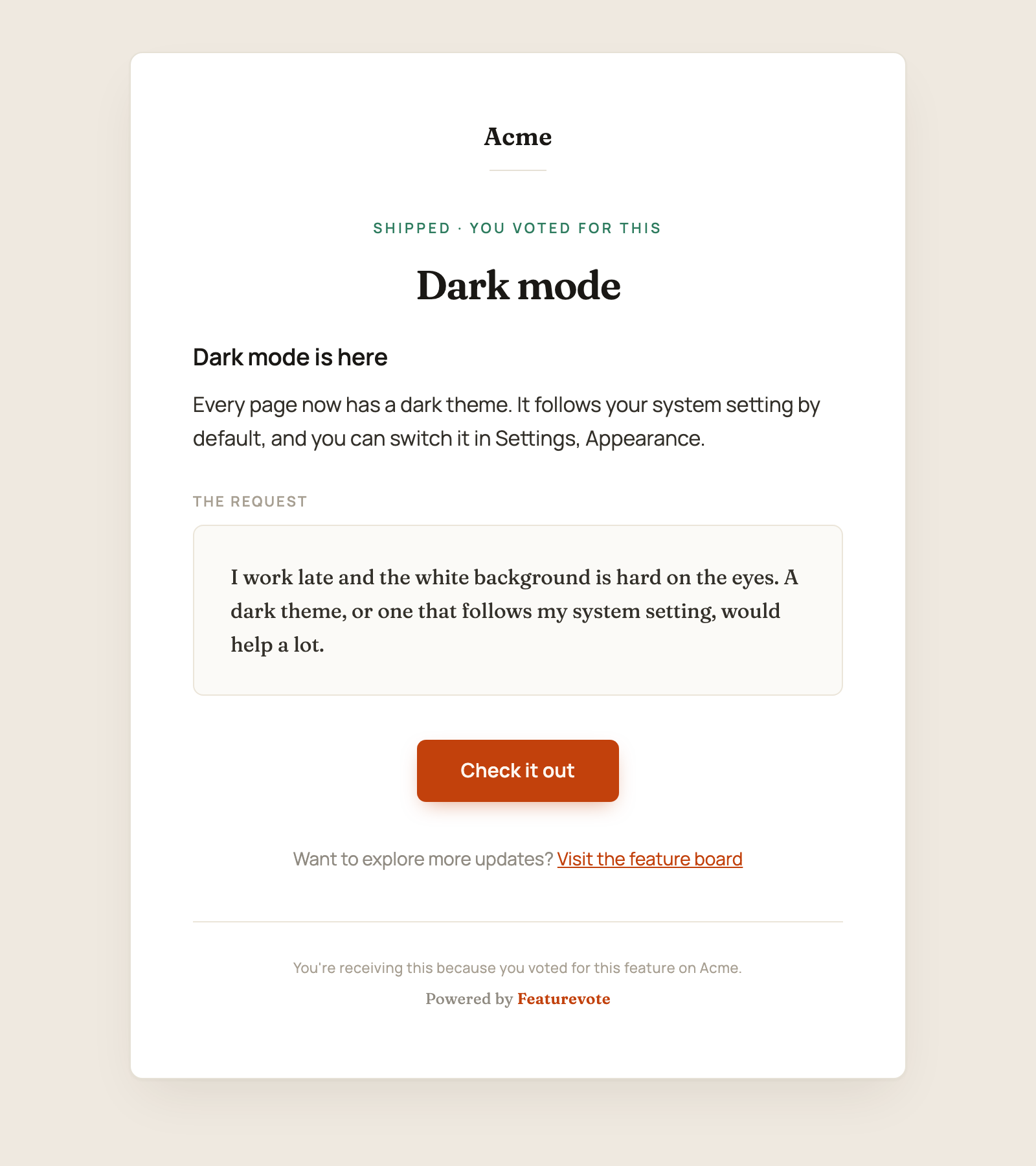
A few people are left out. Anonymous voters who never gave an email can't be reached. People who only commented and never voted aren't emailed either. After you complete the request, the confirmation tells you how many voters the email reached.
Everyone else finds out in the changelog
Voters are only part of the audience. The rest of your users hear about it in the changelog. When you create one, you tick the requests you finished, and each arrives with its release note already written.
The editor tries to keep writing quick. You can paste or drop a screenshot straight into the text, up to 5 MB per image. Enhance with AI rewrites the body in a plain tone. Save for later keeps the entry as a draft until you're ready.
Choose who gets the changelog email
When you publish, you can email the entry to your changelog subscribers. You can send it to all of them, or open Recipients and pick. The list has a search box, one checkbox per subscriber, and one per contact group.
Groups live on the Contacts page. You add people to a group by hand, or with a group column when you import a CSV. So a change that only matters to one customer segment can go to just the subscribers in that segment. Click Select none, then tick the group.
Each changelog is emailed once. People you leave out can't get that one later, and the panel says so before you send.
Every changelog email carries a one-click unsubscribe header, so mail apps that support it, like Gmail, can show their own Unsubscribe button. There is also an unsubscribe link in the footer. It stops changelog emails only. Someone who unsubscribes still gets the email when a request they voted for ships.
Keep a small change off the board
Not every change needs an announcement. When you publish, tick Keep it off the board. The entry is published, but it stays off your board and out of search. Anyone with the link can still open it.
That fits a fix you built for one customer. Publish it quietly and send them the link.
Let readers react without logging in
Published changelog entries have three reactions, 👍 🎉 ❤️. Readers don't need an account or an email address to use them. They show on the board's changelog and on each entry's own page, not in the email. In your admin you see the totals on each entry, not who reacted.
Answer the people who are still waiting
Shipping closes some requests. Others stay open for a long time, and the person who posted one may never hear anything at all.
Home, at the top of your admin sidebar, lists people who have been active in the last 30 days. It has two parts. Waiting for a reply shows people whose request has had no status change, comment or reply yet, and people who wrote again after you answered them. Recent activity shows everything else, including requests you've shipped.
Reply opens a short form and sends a private email to that one person. You write it the way you would write any email, with your own greeting and sign-off. Their answer goes to your own inbox, and nothing about it shows on the board. Once it's sent, they drop off the waiting list.
What does the customer end up seeing?
From the customer's side, closing the loop looks like this.
- An email the day it ships, with your note and their original request.
- Their request on the board, marked Shipped, with your note under their words.
- A changelog entry, if they subscribe to your changelog.
- A personal reply, if you wrote them one while they waited.
The steps for completing a request and writing a changelog are in the docs, in Writing Changelogs and Email Notifications.