Write a changelog and email the people who asked
Turn completed requests into a Featurevote changelog, let AI tidy the draft, and email it to your subscribers when you publish.
A changelog is more than a list of shipped features.
When done well, it builds trust, closes the feedback loop, and helps users understand not just what changed — but why it matters.
A 32-second example: complete a request, choose notification settings, and prepare and publish an AI-assisted changelog:
This guide explains:
- What makes a good changelog
- What to think about when writing one
- How to use Featurevote’s AI to enhance your changelog entries
What a Changelog Is (and Isn’t)
A changelog is a clear, honest record of what changed in your product.
A changelog is not:
- A place for marketing language or hype
- A sales message focused on persuasion rather than clarity
- A technical commit log
- A list of every internal change
Your goal is clear, honest communication — not promotion or completeness.
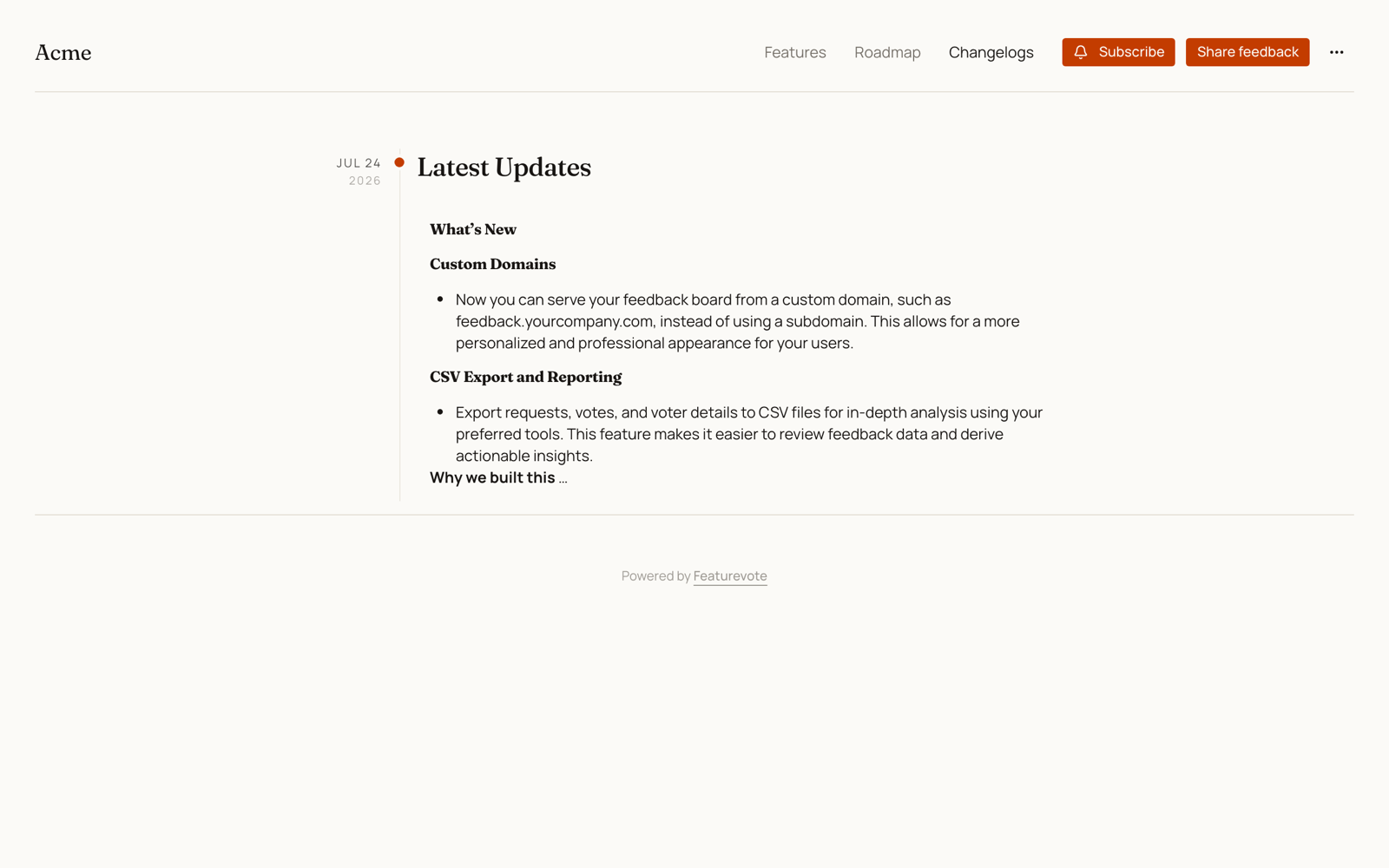
What to Include in a Changelog Entry
When creating a changelog entry in Featurevote, focus on three things.
1. What changed
Describe the change in plain language.
Good:
Export lists and tasks to CSV or Google Sheets
Less helpful:
Added export functionality with metadata support
2. Why it matters to the user
Explain the impact, not the implementation.
Examples:
- Saves time
- Reduces manual work
- Improves clarity
- Makes reporting easier
If a user asks, “Why should I care?”, the changelog should answer that.
3. (Optional) Why the change was made
When relevant, sharing why you built something builds trust.
Keep this short and factual. One or two sentences is often enough.
Example:
We noticed many teams weren’t asking for exports to move data around, but to create reliable weekly status reports without manual cleanup.
Using AI to Enhance Your Changelog
Featurevote includes AI tools to help you turn rough notes into clear, customer‑facing changelog entries.
How It Works
Write your changelog content in plain language. Click Enhance with AI and it will:
- Organize your notes into clear sections
- Add professional phrasing
- Maintain a consistent tone
- Keep your original meaning intact
The AI doesn't invent features. It just makes your writing clearer.
Email Customization
In the publish panel, open Customize email and click Auto-fill to draft the subject, inbox preview text and introduction. Edit any of them before you send.
When to Use It
AI works best when you:
- Have shipped features but struggle to explain them clearly
- Want consistency across all your changelogs
- Have technical notes that need user-friendly language
- Are writing in a second language and want polish
Start with bullet points about what changed. AI handles the rest.
You stay in control — the AI assists, it doesn't replace your judgment.
When Not to Use AI
Avoid using AI to:
- Invent motivations or strategy
- Add hype or marketing language
- Explain decisions you’re not comfortable sharing publicly
If something shouldn’t be public, keep it internal or mark the request Private.
Publishing and Emailing
When you publish, the same panel decides who hears about it.
- Recipients — everyone subscribed by default. Narrow it to one or more contact groups, or tick people one by one. Groups come from Contacts, where you can also import a CSV with a
groupcolumn. - Keep it off the board — for updates meant for a few people, like a beta for your testers. The entry stays off the Changelogs tab and out of search, but anyone with the link can open it.
- Send Test Email — sends the email to your own address only, so you can see exactly what subscribers will get.
- Save for later — keeps the entry as a draft without publishing it.
- Post to #channel on Discord — shows when your board is connected to Discord and you picked a channel for changelog posts. Featurevote posts the entry there once. See Post Changelogs to Discord.
The panel shows how many subscribers you have next to your plan's email limit. If the list is bigger than the limit, the entry still publishes but no email goes out, so narrow Recipients to fit or upgrade first. See Email Notifications for the limits.
Published entries show 👍 🎉 ❤️ reactions underneath. Visitors can react with one click and no login.
Final Tip
Write changelogs for someone reading them months later, without full context.
If the change still makes sense to them, you’ve written a good one.