Manage feature requests and their statuses
Set statuses, reply to comments, vote for a customer, add images, keep requests private and track bugs in Featurevote.
Once feature requests come in, here is everything you can do with them from the Feature Board page.
Requests that arrive by email or support chat belong on the board too. This 29-second film shows how to add a request and record a vote on a customer's behalf:
Feature Statuses
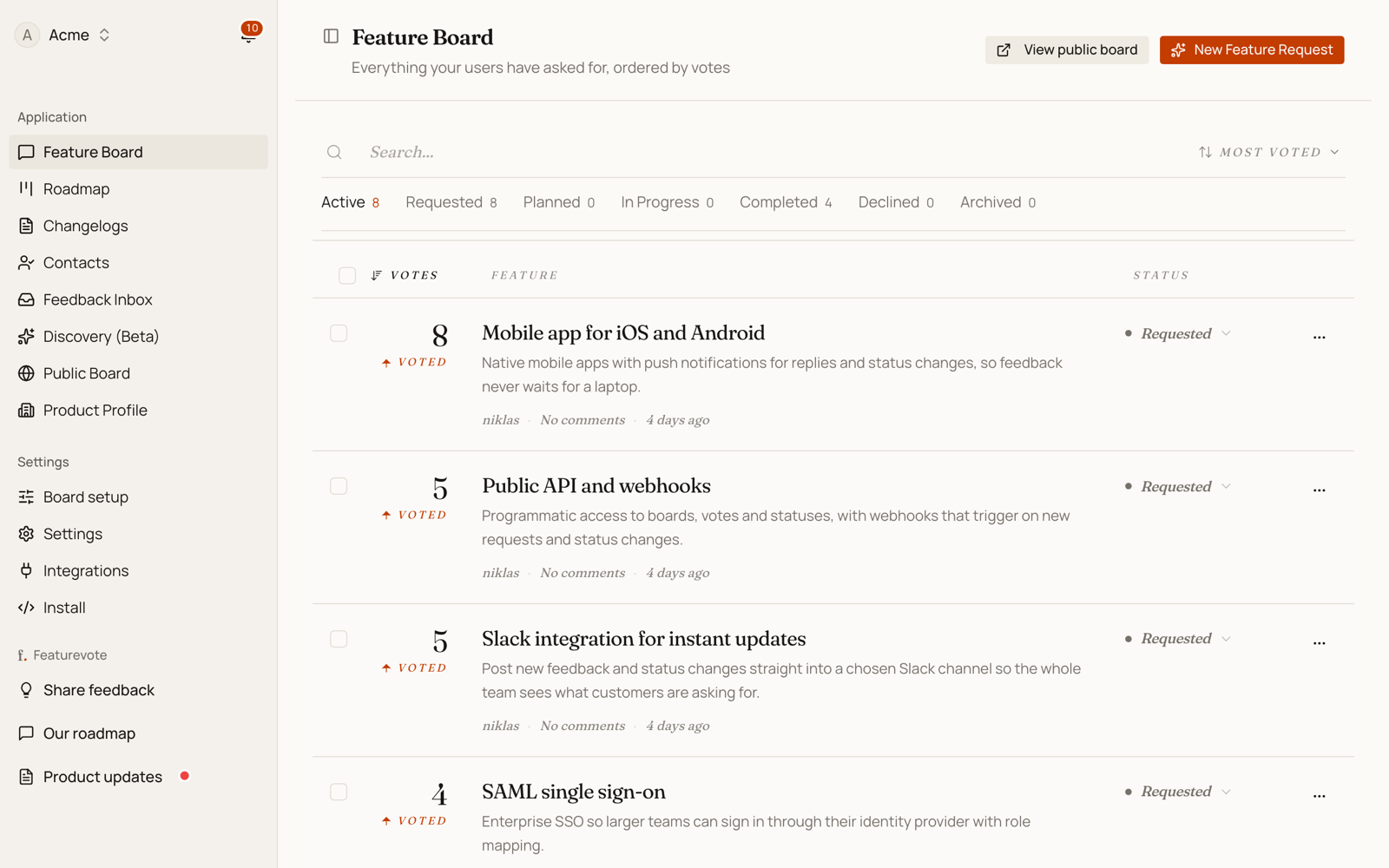
The number beside a request is its points total. Without vote weighting that's simply the number of voters. With the Patreon or Discord integration it's the sum of the weights behind it. The list opens newest first. Sort by Most Voted to rank by points, the same measure your Feedback Portal uses (the portal itself opens on Trending).
Every feature has a status. Updating it keeps voters informed and your roadmap accurate.
| Status | Meaning |
|---|---|
| Requested | New, not yet decided |
| Planned | Approved, not started |
| In Progress | Currently being built |
| Done | Shipped |
| Not Planned | Won't be built |
Change the status from the feature list or the feature detail view. Not Planned requests drop out of your Feedback Portal's lists and search.
Choosing Done opens the completion sheet. With Notify Voters ticked (it is by default), voters who left an email get the news. Voters who voted in one click without an email don't.
A bug uses these same statuses. With Known issues on, your Feedback Portal names them Reported, Confirmed, Fixing and Fixed, and a fixed bug's email says Fixed. Your dashboard keeps the names above.
Comments
Comments let you communicate with users directly on a feature request.
- Click a feature to open the detail view, then scroll to the comment section.
- Leave a comment as the team — it appears publicly on the feature, marked Team.
- Users can reply. On your Feedback Portal the request and its comments read as one thread, and the request's card says Team replied once you have.
- Comments can carry images too.
- Use comments to ask clarifying questions, share timelines, or close the loop when a feature ships.
Who's Working on It
Every request has a Working on it field for the team member handling it. New requests you create start assigned to you, and so do requests you convert from the Feedback Inbox. Change it from the request, and filter the list by Everyone, Mine, Unassigned or a named member.
Assignment is internal. Your Feedback Portal never shows it.
Voting on Behalf
Sometimes a user asks for a feature via email or support, and you want their vote counted without asking them to visit the board.
- Open the feature detail view, or click the vote count on the request's row.
- In Add a voter by email, start typing their name or email. People already in your contacts are suggested as you type.
- Pick them, or finish typing a new email. A new voter can be given a name with Add a name.
- Click Add vote. Their vote is recorded and attributed to that email.
Someone already in your contacts keeps the name they have, and someone who unsubscribed from your changelog emails stays unsubscribed. A new voter is subscribed. If they had already voted, the button reads Remove vote instead.
This keeps vote counts accurate and avoids undercounting demand from users who engage through other channels.
Images
Features can have images attached for additional context — screenshots, mockups, or anything visual that helps clarify the request.
- When creating or editing a feature, use Add images, or paste or drop images straight in. A request holds up to 3.
- Images are visible to admins in the feature detail view.
- Images on public features are visible to anyone viewing the board.
Private Features
Mark a feature private to hide it from your Feedback Portal while still tracking it internally.
- In the feature create or edit dialog, tick Private Feature.
- Private features are visible to team members only — they don't appear on the Feedback Portal, roadmap, or anywhere outside the admin dashboard.
- You can make a private feature public at any time. Votes and comments are preserved.
See Private Features for more detail.
Idea or Bug
Every request is an idea or a bug. On a board with Known issues on, visitors pick one when they post, and open bugs get a tab of their own on your Feedback Portal.
- To re-file a request, open its edit dialog and pick Idea or Bug under Type.
- In your dashboard, bugs sit in the same list and roadmap as ideas, so the edit dialog is where you see a request's type.
Finding and Merging Duplicates
Users often submit the same request in different words. AI detects these automatically.
- Select a feature request from your list.
- Click Find Duplicates.
- Review the similarity scores and suggested matches.
- Select the features you want to merge, click Next Step, then Confirm Merge.
Votes and comments from merged features consolidate onto the primary request.
See Finding and Merging Duplicates for full detail.