Turn raw feedback into feature requests
Featurevote's Feedback Inbox collects private messages and feedback you paste in, lets you reply, and turns the best ideas into requests.
The Feedback Inbox is an admin-only area for collecting and acting on raw customer feedback before it becomes a feature request. It keeps the original submission intact while you decide what to do with it.
A 30-second example: a private board message arrives, AI drafts a request, and the team reviews it before conversion. The recording uses an earlier layout:
Forward your support email
Forwarding sends your customer email into the inbox, where each mail becomes a conversation you can answer.
- Open Feedback Inbox. While it is empty, click Get a forwarding address. The address is also under Settings → Email.
- Copy the address.
- In Gmail, Outlook or your help desk, add a rule that forwards customer mail to it. Keep a copy in your own mailbox.
Gmail first sends a confirmation code to the address. It lands under Done, marked Automatic, so open it there to copy the code.
Replies you send from the inbox go out by email. Once you have a forwarding address, the customer's answer comes back into the same conversation. Before that, it goes to your own mailbox. On a paid plan they can go out from your own domain, set up under Settings → Email. When that is the domain of the address you sign in with, such as yourcompany.com rather than mail.yourcompany.com, your replies go out from your own address under your own name.
Add Feedback
- Go to Feedback Inbox and click Add Feedback.
- (Optional) Add customer details (name and email).
- Enter feedback text, or leave it blank if you only have screenshots.
- Add screenshots (images only).
- Click Create Feedback.
AI Draft from Screenshots (Optional)
If you attached screenshots, you can draft the feedback text with AI:
- Expand AI Draft Assistant.
- (Optional) Add guidance or specify a language.
- Click Generate draft.
- Review the suggestion, then Accept (or press Tab) or Dismiss.
This only drafts the feedback text — it does not auto-save.
Review Feedback
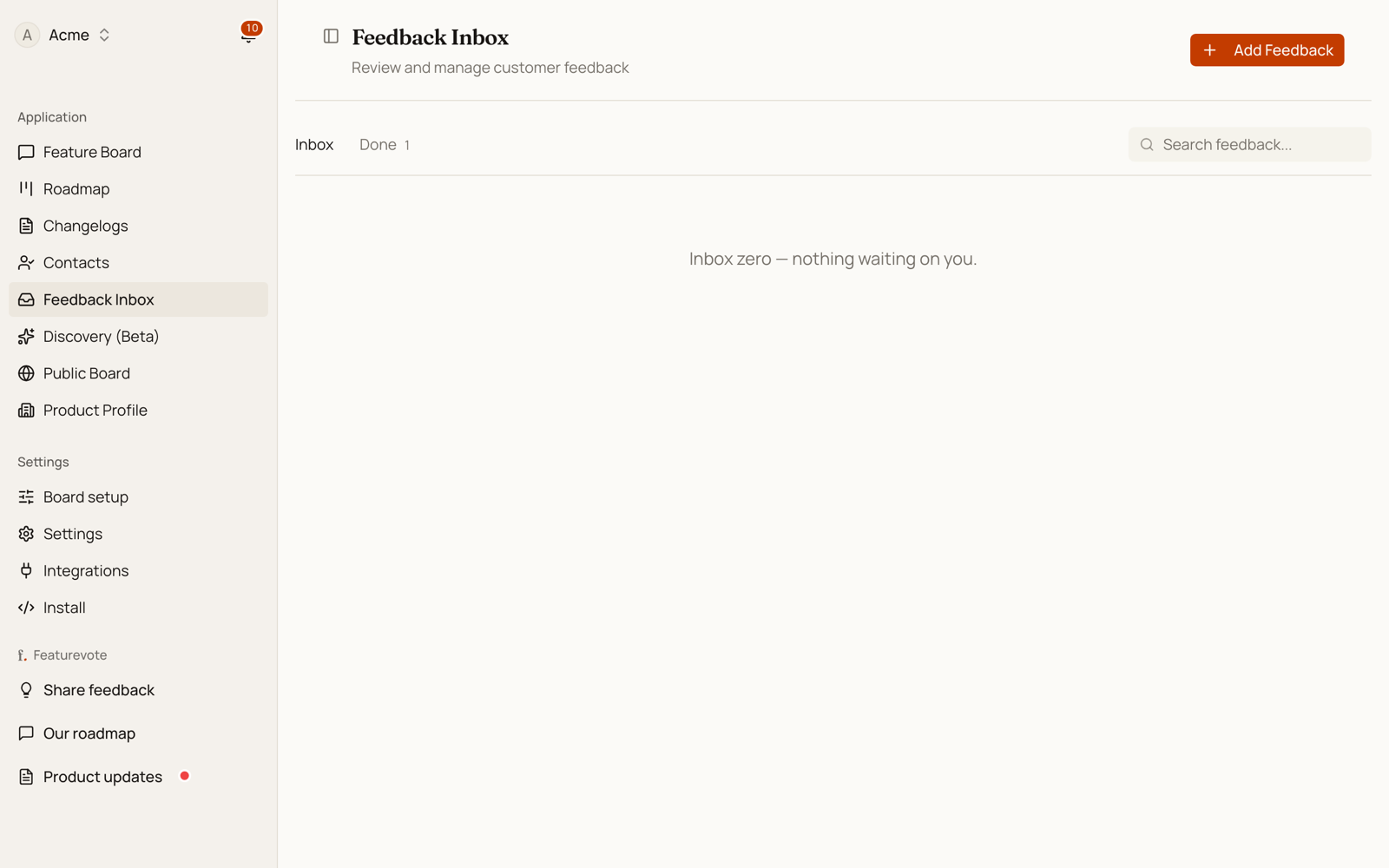
Click any item in the list to open its conversation. It shows everything they wrote and every reply you sent, with the actions at the top. To clear an item without opening it, click Mark done on its row.
Reply to Submitters
You can reply directly to the person who submitted feedback if they provided an email address.
- Open a conversation and click Reply.
- Write your reply, or use Suggest reply to draft one with AI:
- Type a short prompt in the guidance field (e.g. fixed in latest release).
- Click Suggest reply — AI will draft a message based on the original feedback and your prompt.
- Review and edit before sending.
- Click Send reply.
The reply keeps the conversation's subject. Click Change next to it to write a different one. What you sent shows in the conversation afterwards.
Convert to Feature
- Open a conversation and click Convert to Feature.
- (Optional) Use AI to draft a feature title and description from the feedback.
- Review and edit.
- Click Create Feature Request.
When you convert:
- A new feature request is created on your board, assigned to you.
- The feedback is marked Converted.
- The feedback stays linked to the created feature — click Open feature to jump to it.
Needs you, Waiting and Done
The inbox has three tabs, by whose move it is. Needs you holds the conversations waiting on you. When you reply, the conversation moves to Waiting, and it comes back to Needs you when the customer answers. Mark done and converting to a feature request move it to Done, and Restore brings it back.
New items show an unread dot until you open them. Reading one does not move it: it stays under Needs you until you reply or mark it done.
Mail from a no-reply address, like a digest or an automatic report, goes straight to Done with the label Automatic, so it does not count as waiting on you. Nothing is deleted. If a mail ended up there by mistake, open it and click Restore.
Visitors can also send you private feedback. On your Feedback Portal it's the Message the team button in the header. In the embed's feedback form it's Message the team instead, a link under the idea box. Either way it lands here rather than on the board. Both are there while Issue reporting is on in Settings → Access and submissions.
A bug that other people can run into can go on the board instead, as a known issue, where others say Me too and everyone hears when it's fixed.
Home: what is waiting on you
Home, at the top of the sidebar, is one list of what is waiting on you: requests to approve, inbox conversations, and People waiting for a reply. That last group is the people on your board who have had no answer yet. Each row says why they're there (a first request, a request with no reply yet, or someone who replied to you) and what they did last. Until someone outside your team has voted on your board, Home shows how to get the board going instead, starting with a ready message that holds your board's link.
Click Reply on a row to write them a private email. It goes out with your name on it, you write the greeting and sign-off yourself, and their answer lands in your own email rather than on the board.
The conversations under Needs you show on Home too, under Inbox conversations, and each one opens its conversation. The number next to Feedback Inbox in the sidebar is the same count, whether you have read them or not, and it goes down when you reply or mark one done.
Below what is waiting, Activity in the last 30 days lists the requests your visitors voted on, commented on or added, busiest first. Votes from your own team are left out. Until a visitor has voted, Home shows a ready message with your board's link instead, with Copy message, so you can put the board in front of people.