Discord integration for voting from your server
Connect Discord to Featurevote so members suggest and vote from your server, votes count by role, and changelogs post to a channel.
Connect your Discord server to Featurevote and your members can suggest and vote without leaving Discord, or log in with Discord on your Feedback Portal. Their votes carry the weight you give their roles, you can close the board so only members take part, and your changelogs can post back to a channel you pick. The integration is part of every plan. On the free plan's 15 active requests, your team's requests from Discord count like any other, and your members' requests are never capped.
Because Discord roles are where many communities already mirror supporter status — from Patreon, Ko-fi, YouTube memberships, or a community bot — weighting votes by role works with whatever platform runs your memberships, without a separate integration for each.
What You'll Get
- Weighted votes — a vote from a member with a weighted role counts for more. You set the multiplier per role, from ×1 to ×100. A member holding several roles counts at the highest weight.
- Members only — an optional gate. When it's on, only members of your server can vote, suggest features and comment.
- Verified identity — members log in through Discord, so a request or comment on a gated board carries their Discord name instead of "Anonymous".
- Non-members hidden or visible — let anyone read the board, or show it only to members.
- Commands in your server — members add requests, turn a chat message into a request, and vote, all from Discord.
- Changelog posts — when you publish a changelog, Featurevote can post it to a channel you pick.
Connect Your Server
1. Connect Discord
- Go to Settings → Integrations
- Click Connect Discord
- Pick your server and authorize Featurevote on Discord
Adding the bot requires the Manage Server permission on that server, so log in to Discord as an account that has it. The bot joins with no permissions at all. It reads your server's name, icon, and role list when you connect. Featurevote never reads your channels. It posts in Discord only when someone uses one of its commands or presses a Vote button, and when you publish a changelog to a channel you picked.
When it works you land back on the Integrations page with the Discord row open. The row says Connected to and names your server.
2. Set your vote weights
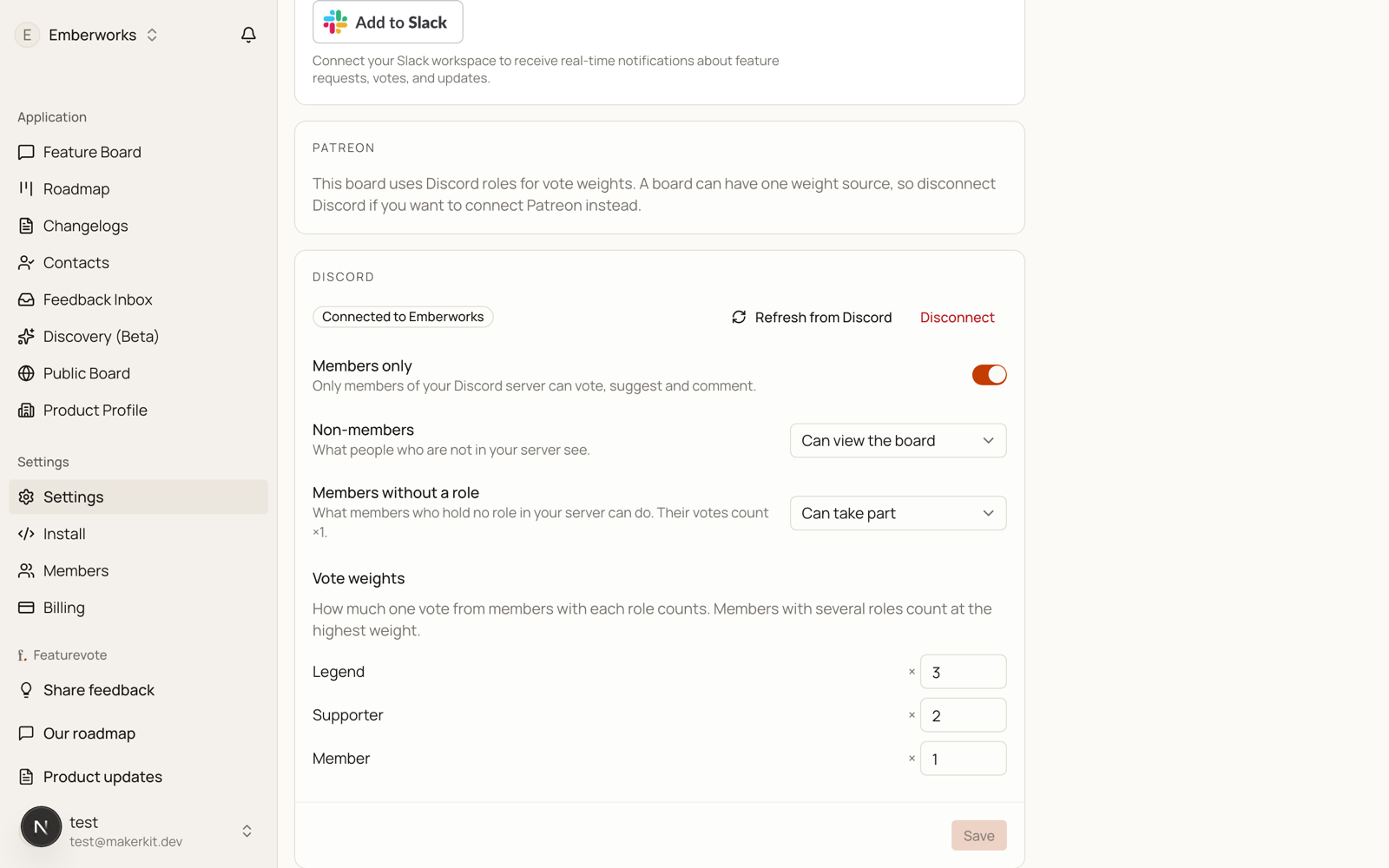
Your server's roles appear under Vote weights, each with a multiplier box.
Every role starts at ×1 — roles carry no price, so there is no ladder to pre-fill. You say which roles matter by weighting them: set your supporter roles to ×2, ×5, whatever fits, between 1 and 100. @everyone is left out, since every member holds it by definition.
Only roles weighted above ×1 appear on your Feedback Portal. The rest of your server's role structure is never shown to visitors.
3. Choose who can take part
Three settings sit above the weights:
| Setting | What it does |
|---|---|
| Members only | Off by default. When on, only members of your server can vote, suggest and comment. |
| Non-members | Can view the board (default) or Cannot view the board. Only applies while Members only is on. On Cannot view, a non-member sees a lock screen instead of the board. |
| Members without a role | Can take part (default) or Same as non-members. Members with no role vote at ×1. Setting this to Same as non-members turns the gate into a role gate: only members holding a role take part. |
4. Save
Make your changes and click Save. The button stays greyed out until something has actually changed.
Weight changes apply to members who are already logged in, so you don't have to ask anyone to sign in again. They apply to future votes only — votes already cast keep the weight they were cast at.
What Your Members See
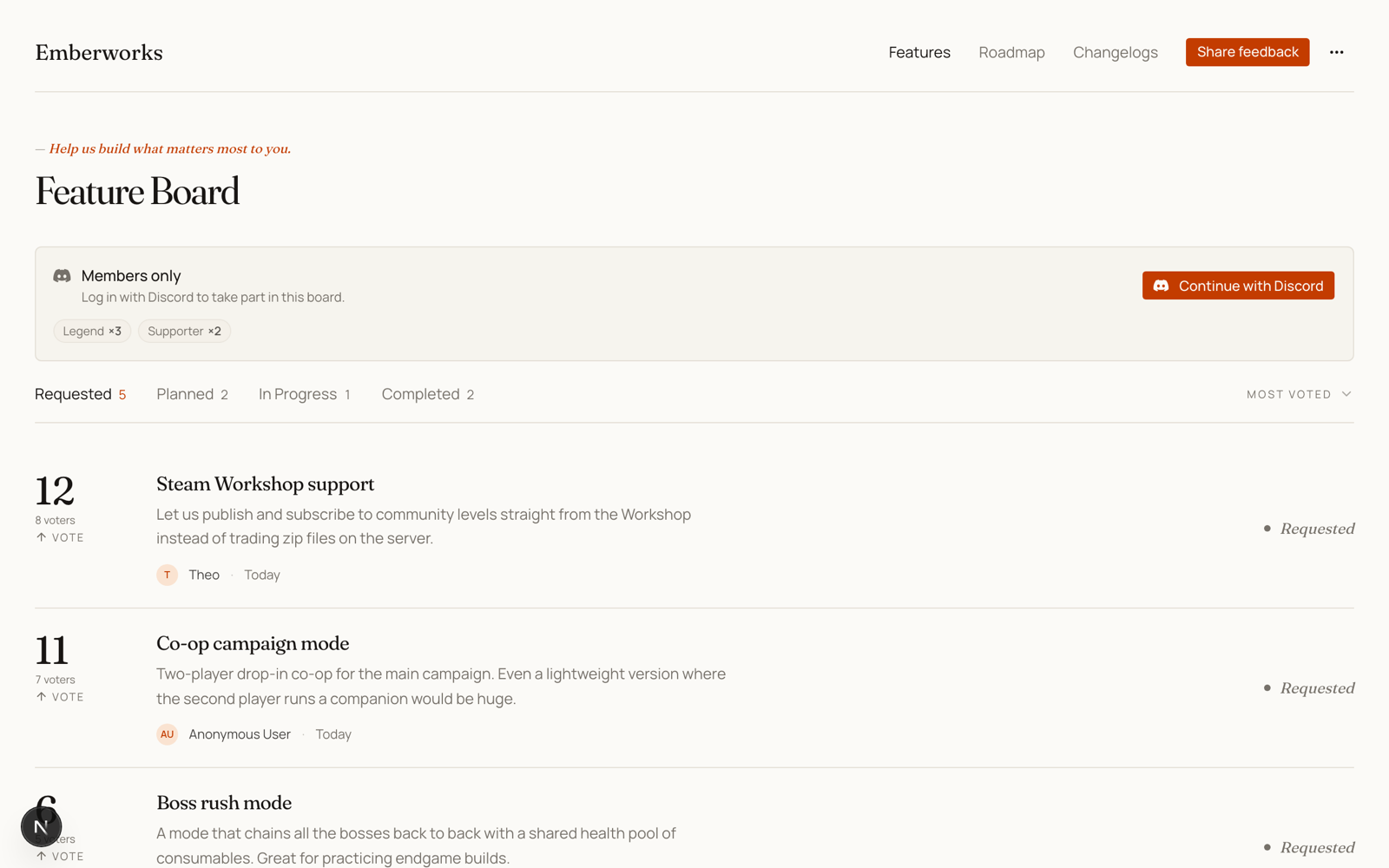
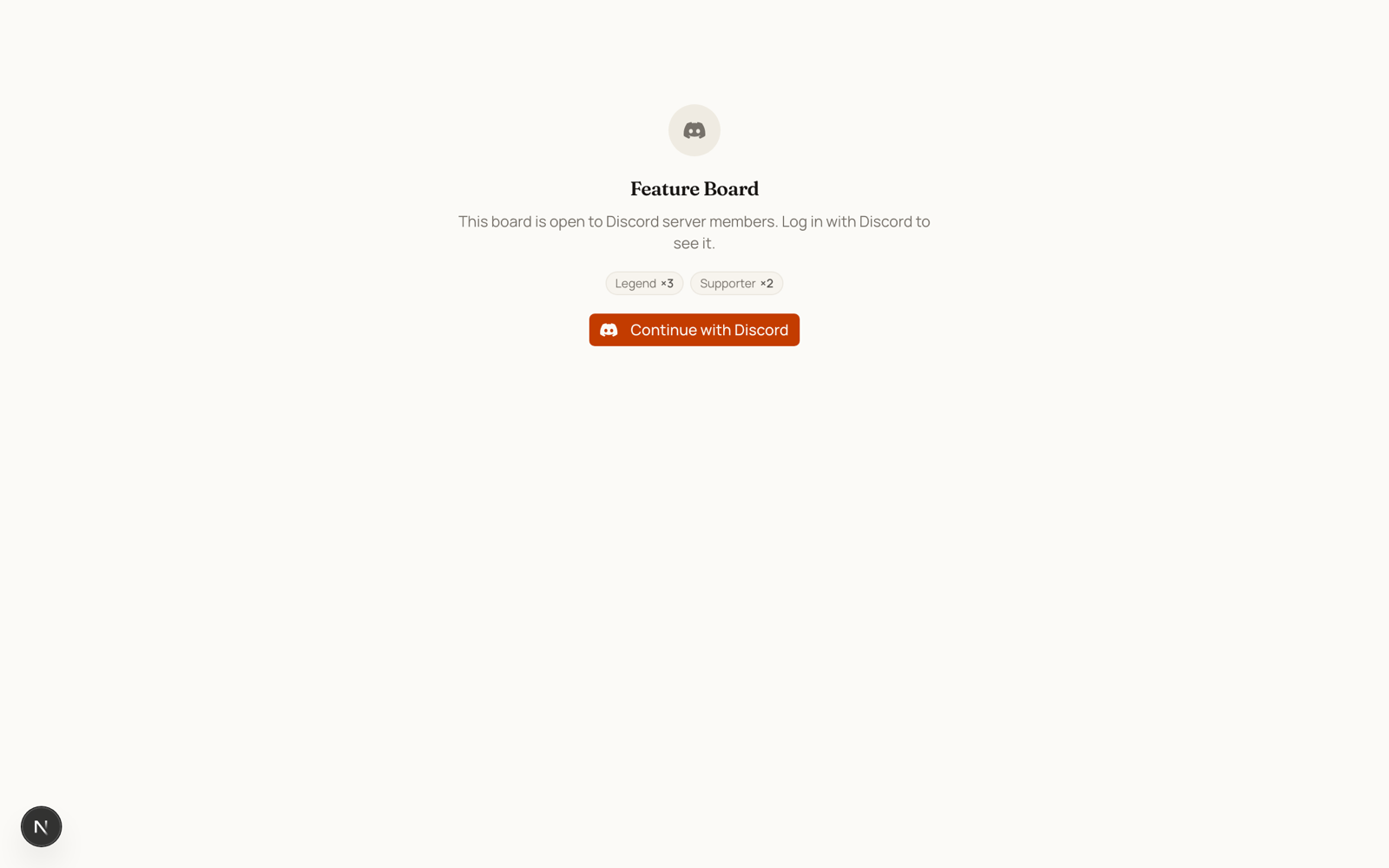
On a board with Members only on, a visitor who isn't signed in gets a Members only panel with a Log in with Discord button. They can still read the board behind it. If you set Non-members to Cannot view the board, the requests are replaced by a short lock screen and the same login button.
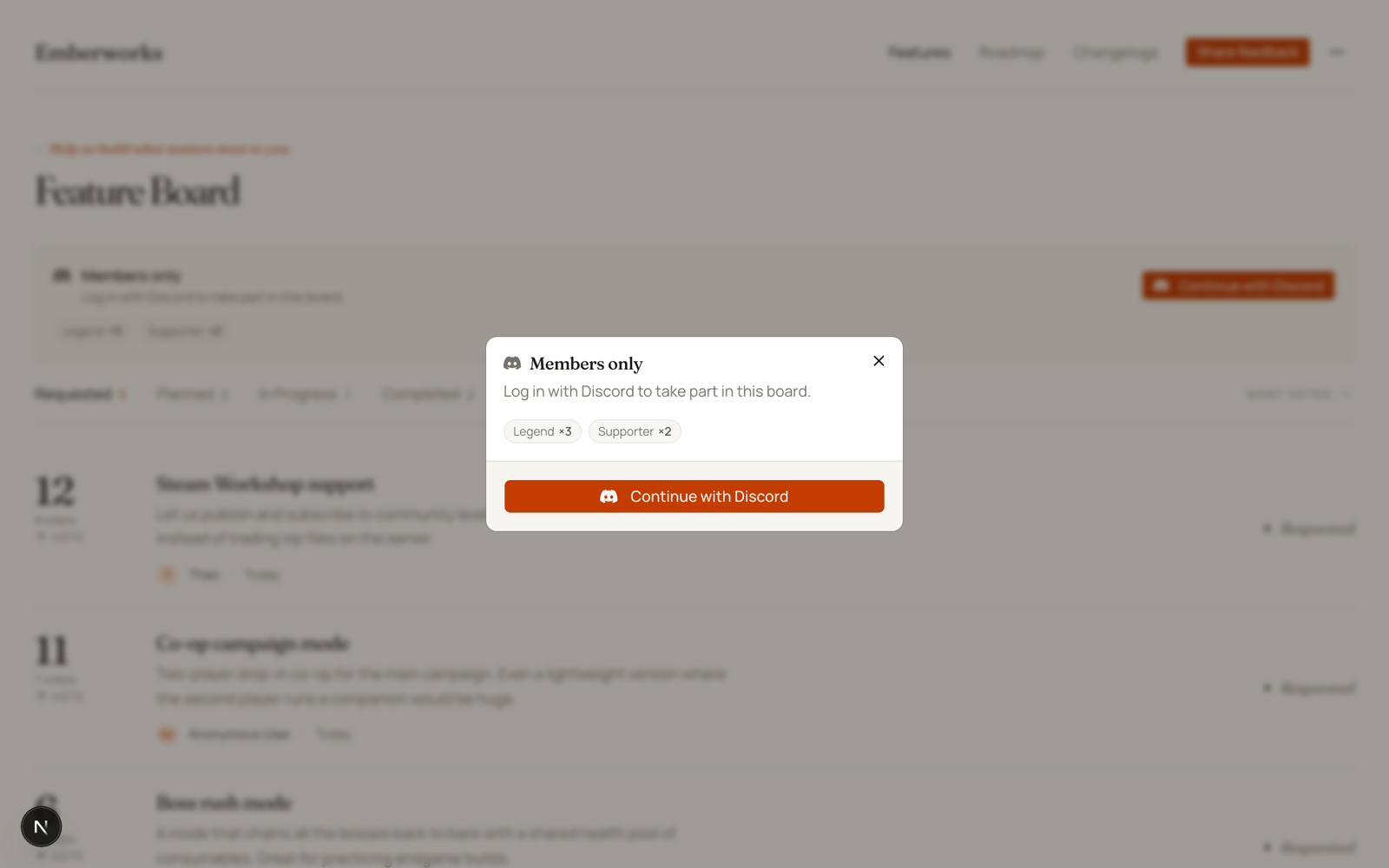
If they click a vote button (or try to suggest or comment) without signing in, a small dialog explains the board is for members and offers the login — nothing happens to their click until they choose. Nobody is sent to Discord just for clicking an arrow.
Once they're signed in, the panel is replaced by one quiet line naming them, their weighted role, and what their vote counts.
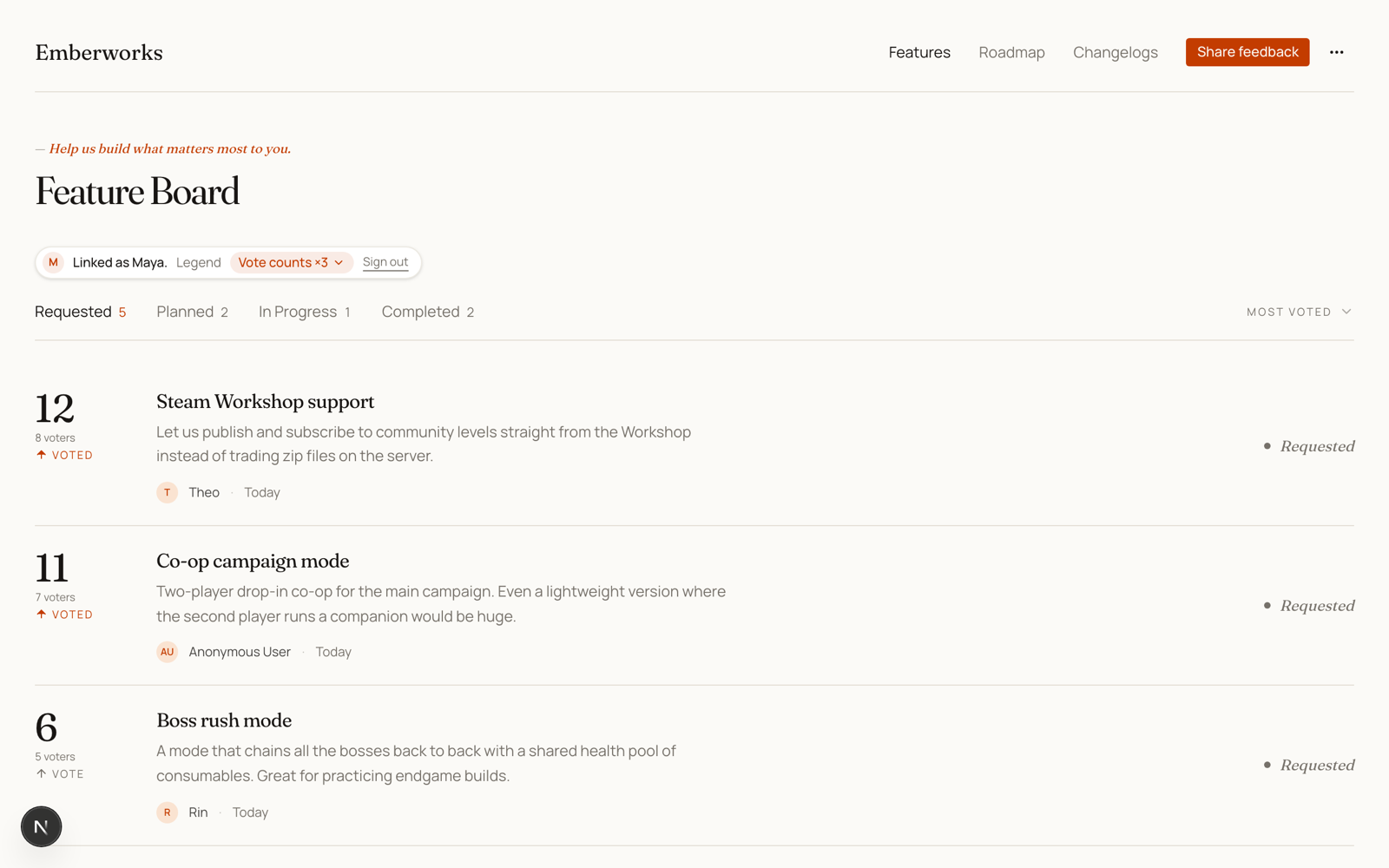
A member with no role, on a board set to Same as non-members, gets the same panel with a different line: they're signed in, but the board is open to members with a server role only. Logging in again wouldn't change the answer — only a role in the server does. They can still view the board, even when it's locked to non-members.
A few things worth knowing:
- A Discord login counts for 30 days on a gated board. After that the member logs in again to keep taking part.
- On a gated board, members post under their Discord name and aren't asked for an email. You won't collect submitter email addresses for those requests, because the Discord identity replaces them.
- Your own team can suggest and comment on a gated board without logging in with Discord. Voting has no team exemption — to vote on your own gated board, log in with Discord like anyone else.
- A creator can always open their own board, even when it's hidden from non-members.
- With Members only off, anyone can take part without logging in. If any role is weighted above ×1, the board still offers Log in with Discord so members can claim their weight, and members who linked their account earlier keep voting with it. One visible trace remains: a member whose 30-day login has expired still sees a small "log in again" line on their identity chip.
How the Numbers Read
The number on a feature card is points — the sum of the weights behind it. Three ×3 members make 9 points, not 3.
- When points and people differ, the card also says how many voters there are, so 9 shows with a 3 voters caption. On desktop, hovering the caption spells out that votes on the board are weighted.
- A member's own request starts at their own weight — a ×3 member's new suggestion opens at 3 points, the same as their vote anywhere else.
- Most Voted sorts by points, on your Feedback Portal and in your admin list.
- Vote milestones in Slack still count people. "25 votes" in your Slack channel means 25 voters, not 25 points, so a milestone can arrive later than the board number suggests.
A board with no role weighting reads exactly as it always did.
Commands
Featurevote also answers three commands inside your Discord server once it is connected. Everyone in the server can use them, so your members can suggest and vote without leaving Discord.
People with the Manage Server permission count as your team. Everyone else is a member, and what a member adds follows the same rules as a post on your Feedback Portal:
- With Items from visitors set to Held for approval, a member's request waits as Pending Approval until your team reviews it, and the member is told so. Your team's requests go straight onto the board.
- With it set to Off, a member who tries to add a request is told the board only takes requests from its team. Your team can still add them, and members can still vote.
- With Members only on, the gate checks the person a request is credited to. That is the member who adds it, or the author of the message it was made from.
- You get the same email, Slack message and in-app notification as for a request posted on the board.
To limit the commands to some roles or channels, open Server Settings, then Integrations, then FeatureVote. A moderator you give them to without Manage Server still counts as a member.
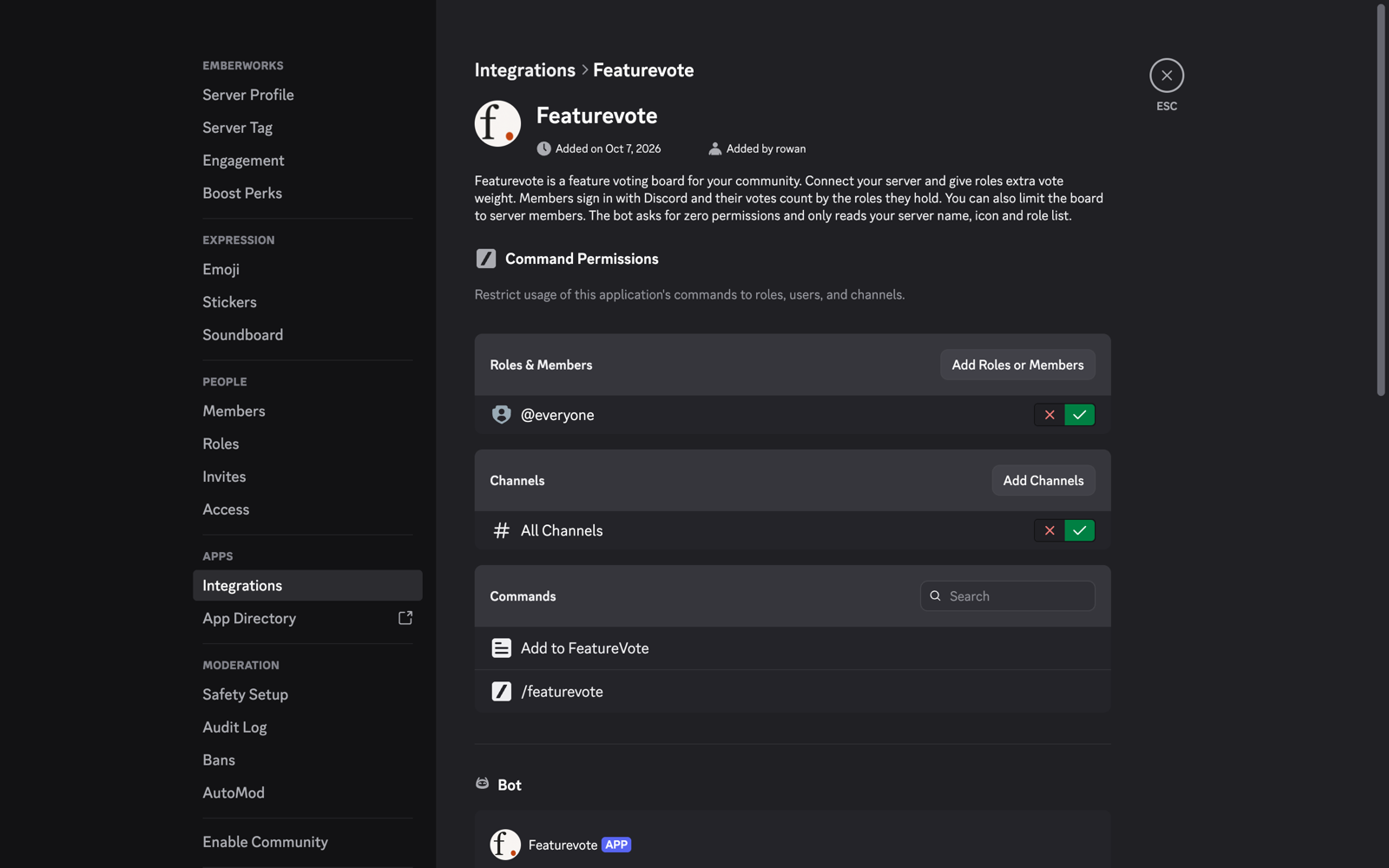
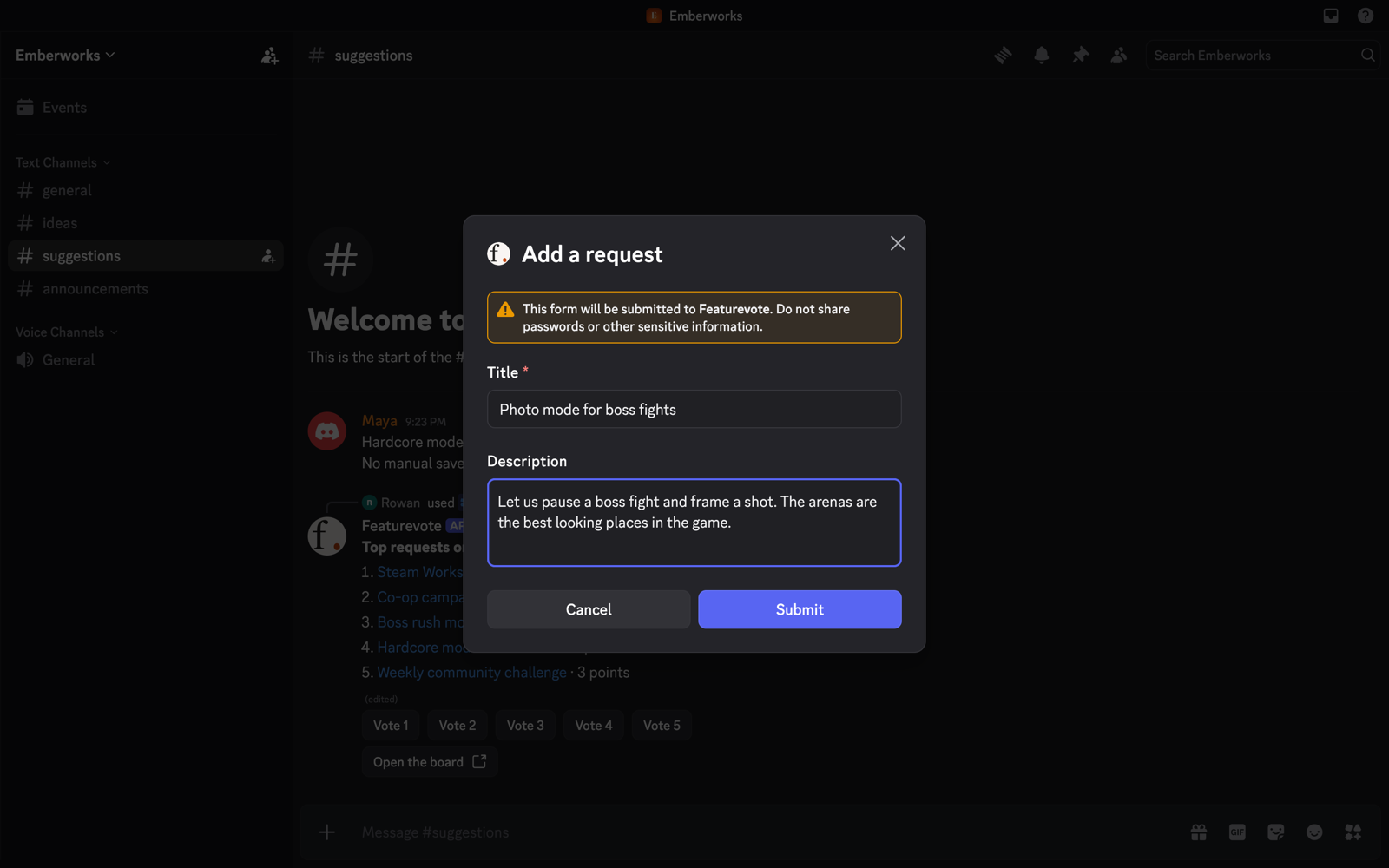
Add a request
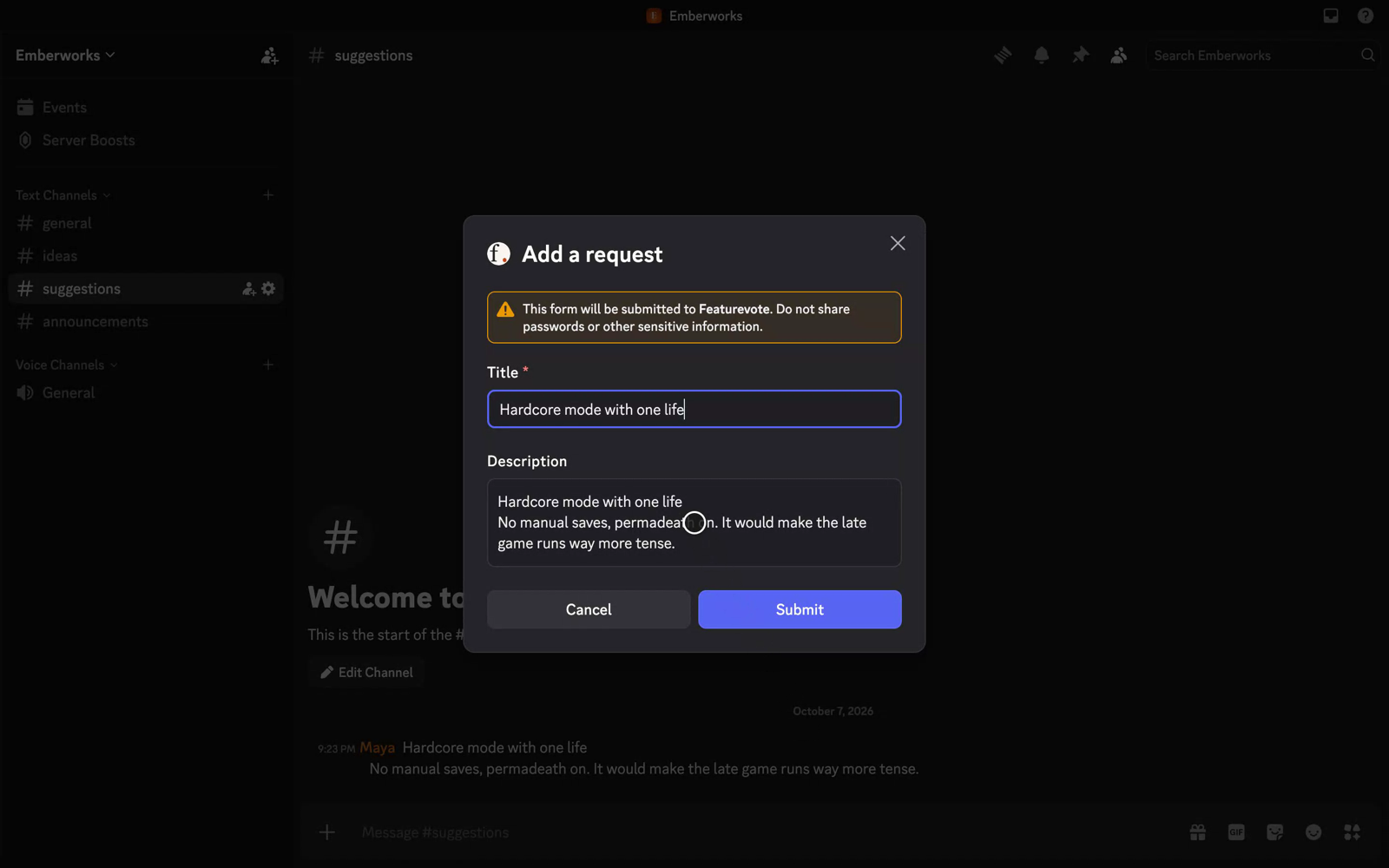
Type /featurevote add. A short form opens with a title and a description. The request goes on the board under your Discord name and starts with your vote. You get a private reply with a link to it, or a note that it is waiting for approval.
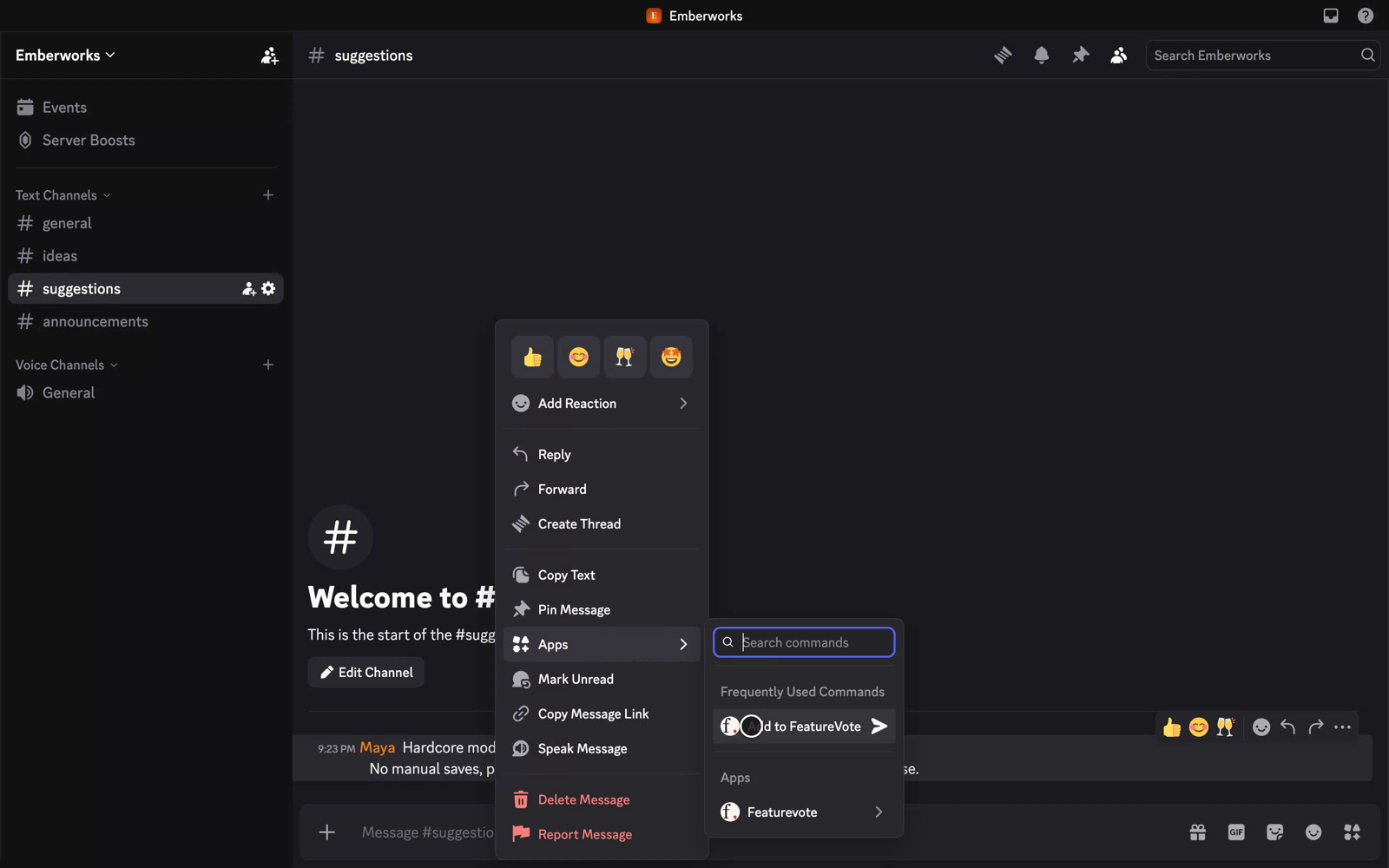
Turn a message into a request
Right-click a message and pick Apps, then Add to FeatureVote. The same form opens, filled in from the message. The first line becomes the title and the whole message becomes the description, and you can change both before you save. The request goes on the board under the name of the person who wrote the message and starts with their vote. A message from a bot or a webhook goes under your name instead.
Any member can do this, which makes it easy to catch a good idea someone mentioned in chat.
Post the top requests
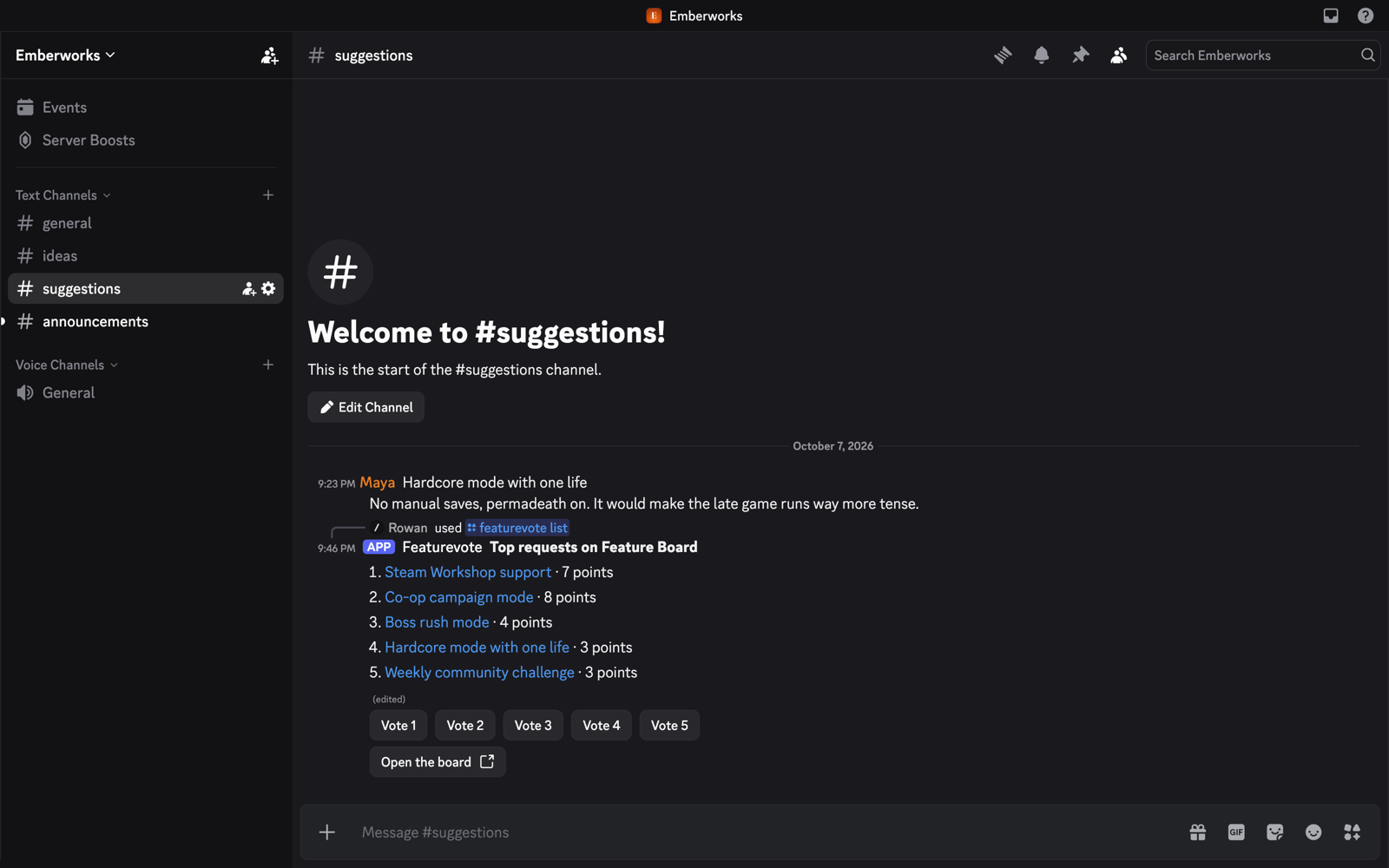
Type /featurevote list to see the five open requests with the most points, with a link to each one and a Vote button for each. When your team runs it, Featurevote posts the list in the channel for everyone to see. When a member runs it, only they see it, so the channel doesn't fill up with lists.
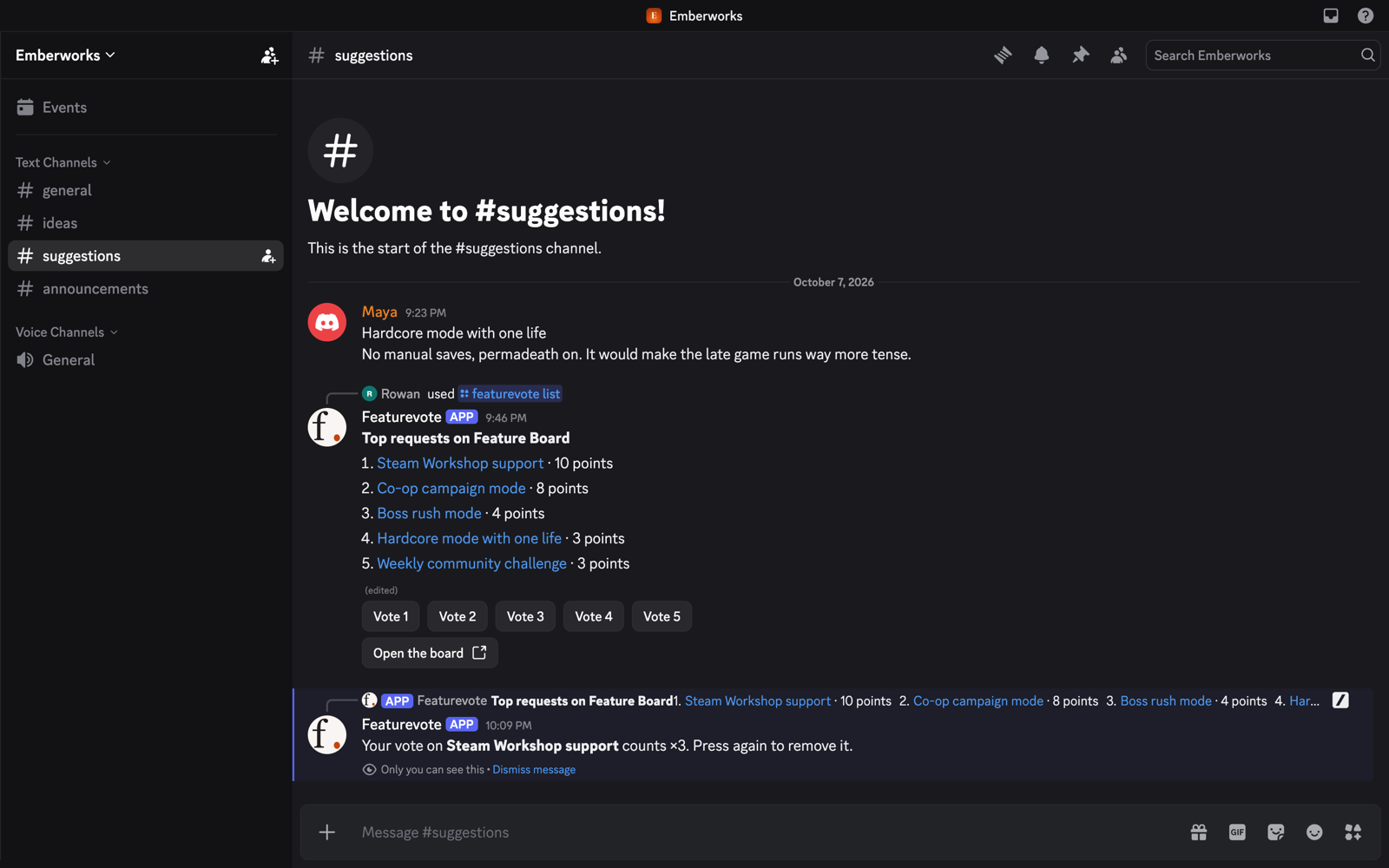
Anyone in the server can press a Vote button. The vote counts the same as a vote on the board. It carries the weight of their roles, which are read again with every press, and Members only and Members without a role apply just as they do on the board. Pressing again takes the vote back. The list updates its numbers with each press, and the person who pressed gets a private note saying what their vote counts.
If your board has tags, the list ends with a menu of them. Picking a tag shows the top five open requests with that tag, and only the person who picked it sees that list, so members can find what to vote on in the part they care about. The list in the channel stays as it is for everyone else. Add tags under Settings, Board, Tags. New requests, including ones added from Discord, are tagged for you.
A few things worth knowing:
- Each member is one voter. A member who also logs in with Discord on your Feedback Portal keeps one vote, not two.
- A posted list keeps the same requests in the same order. A request that is declined or archived after the list went up takes no more votes, and drops off the list the next time someone votes on it. One marked done stays on the list and can still take votes, as on the board. Post the list again to see the current top five.
- On a board hidden from visitors, the list and the replies have no links, so your board's private address never ends up in Discord.
- The commands don't work while the board is private or read-only, or while your server is connected to more than one Featurevote board.
Post Changelogs to Discord
When you publish a changelog, Featurevote can post it to a channel in your server, so the people who asked hear that it shipped.
- In Settings → Integrations, open the Discord row and click Pick a channel under Changelog posts.
- Discord's own screen opens. Pick your server and the channel, and authorize.
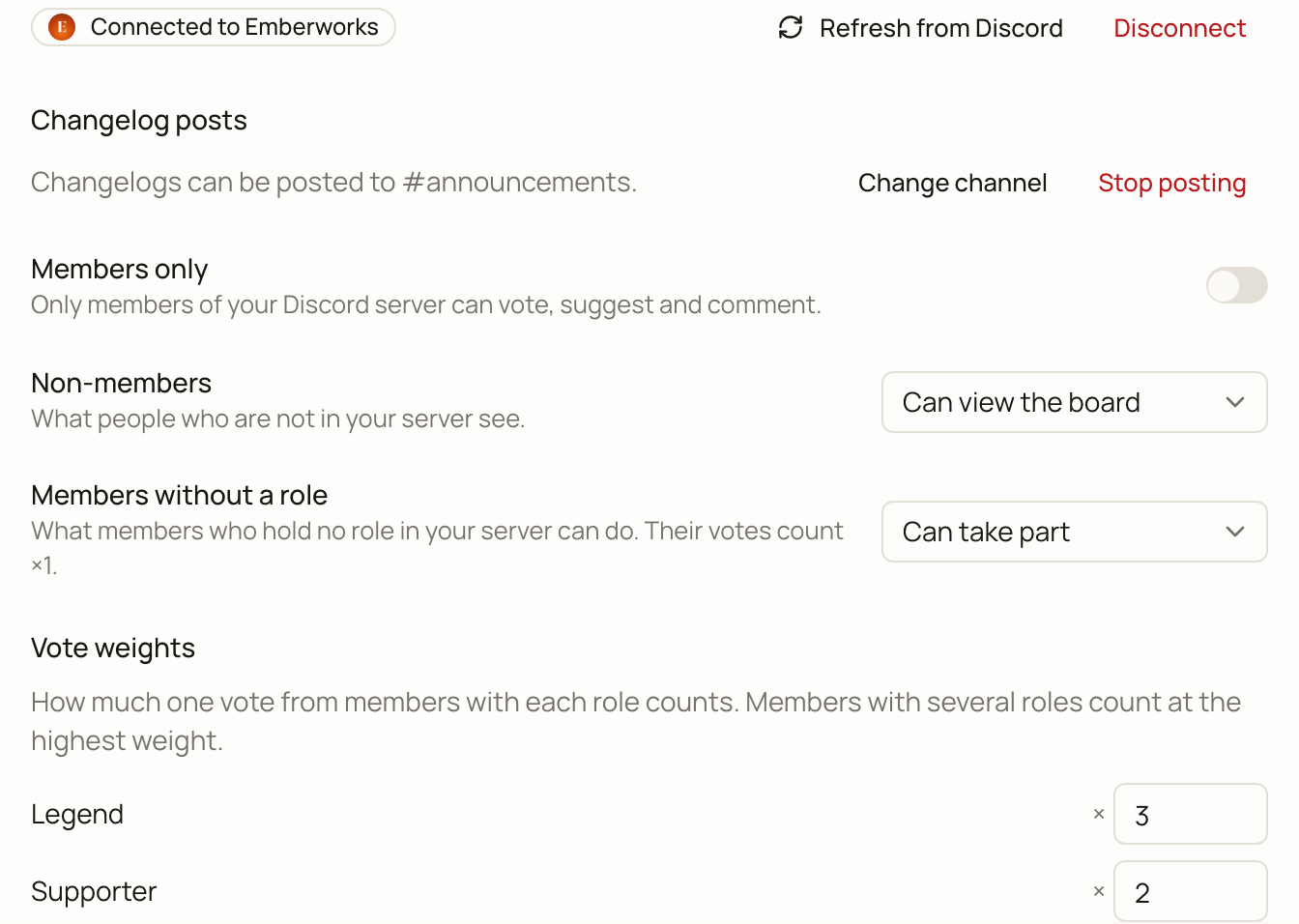
- Back in Featurevote, Changelog posts says which channel changelogs can be posted to. Change channel picks another one, and Stop posting turns it off.
When you publish, the publish dialog has a Post to #channel on Discord box. It is ticked by default once a channel is set. Featurevote posts the changelog once, as a short card with a link to the full changelog.
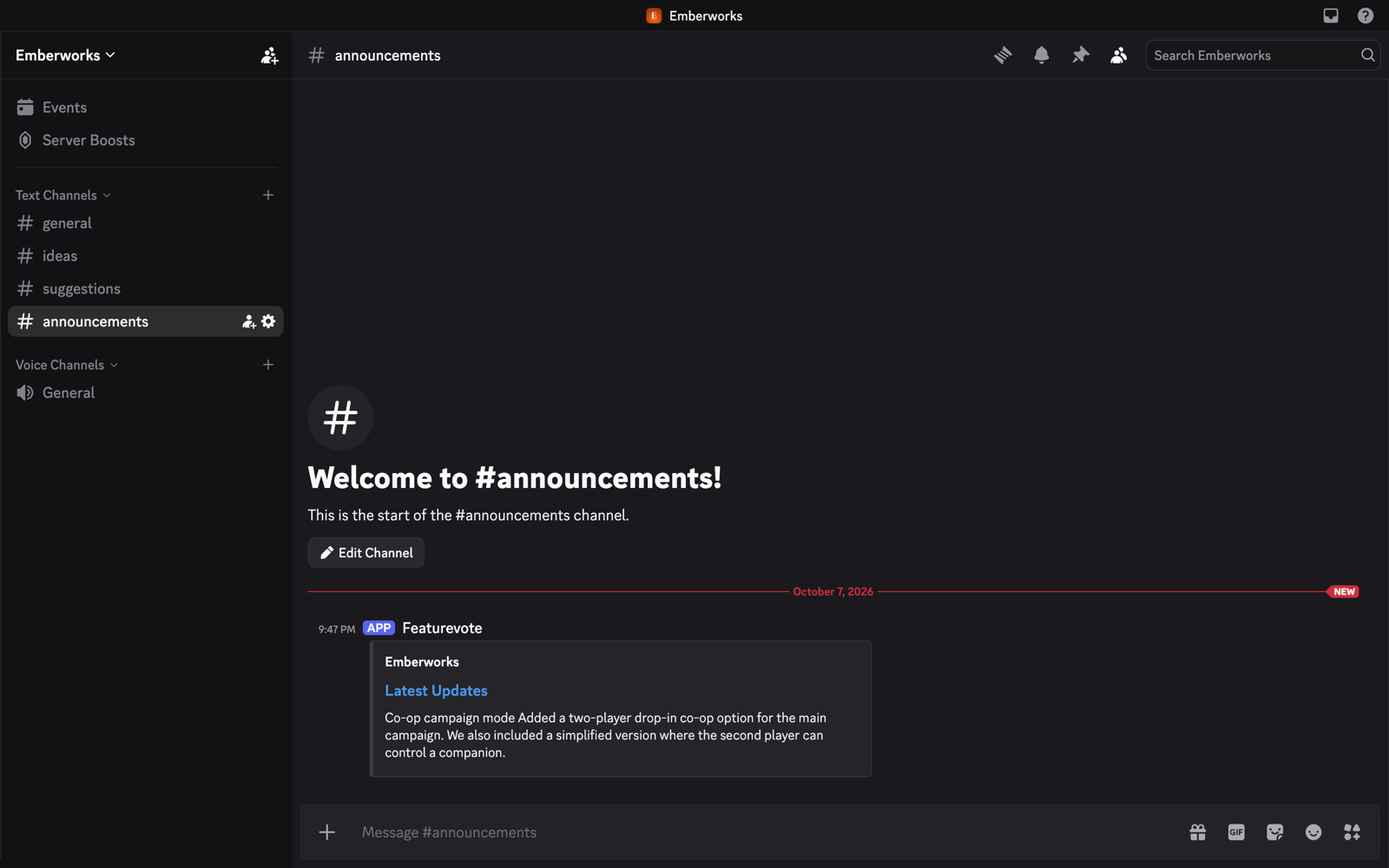
A few things worth knowing:
- A changelog kept off the board is not posted.
- On a board hidden from visitors, the post has no link.
- The post never mentions anyone, so nobody gets pinged.
- Disconnecting Discord, or moving it to another server, stops the posts.
Keeping Things Fresh
A member's membership and roles are read when they log in on the board. Discord doesn't tell Featurevote about role changes in between — so a promotion, a lapsed supporter role, or someone leaving your server reaches the board the next time that member logs in. On a board with Members only on, a login counts for 30 days, which puts a ceiling on how stale a gated board can get; with the gate off, a linked member simply keeps their last-read weight until they log in again. Votes already cast keep the weight they were cast at either way.
Two things come from buttons in the Discord row rather than from logins:
- Your own weight edits apply as soon as you save — including to members who are already linked, for their future votes.
- New, renamed or removed server roles arrive when you press Refresh from Discord. Roles that still exist keep your multiplier, new roles come in at ×1, and removed roles drop off the list.
One consequence worth knowing: those two buttons act on already-linked members immediately. If you delete a role in Discord and press Refresh, members who held only that role become roleless right away — on a board where Members without a role is set to Same as non-members, they lose the ability to take part at once, not in 30 days.
Using Discord Alongside Patreon
You can connect Patreon and Discord to the same board. With both gates on, both login buttons show, Patreon first.
- Gates. With both Patrons only and Members only on, a visitor can take part if they pass either one. With only one on, only that one lets people in, and the other just adds weight.
- Weights. Each provider keeps its own weight for a voter. Someone linked to both counts at the higher of the two.
- Who can see the board. If either gate that is on hides the board from outsiders, it is hidden. Someone who has logged in and passes a gate that is on still sees it.
If Patreon (or Ko-fi, or a membership bot) already assigns supporter roles in your Discord server, you may not need both: connect Discord and weight those roles. The membership platform keeps the roles current on its side; the board reads them when members log in.
Disconnecting
Open the Discord row and click Disconnect.
- Member gating turns off.
- Role weights stop applying to new votes.
- Members' verified links are removed.
- Votes already cast keep their weight.
The Featurevote bot leaves your server when the last Featurevote account connected to it disconnects. If Discord refuses the request for any reason, the leftover bot is inert — it holds no permissions — and you can kick it from your server's member list.
Reconnecting to the same server keeps your role weights. Reconnecting to a different server clears every member's link and starts the role list fresh — those people aren't members of the new server, and its roles are different roles. If Members only is on, it stays on, so members of the new server take part once they log in.
Troubleshooting
- "No server was selected." — the Discord screen lets you pick which server to add the bot to, and the connection needs that choice. Try again and pick the server.
- "Could not connect Discord." — something transient went wrong during the handshake. Try again; if it keeps failing, get in touch.
- "That Discord account is not a member of this server." — the visitor logged in with a Discord account that isn't in your server, or their membership is still pending screening.
- "This browser is already signed in as a different Discord account." — one browser holds one member identity. The message offers a way to switch accounts; votes cast under the previous account stay with that account.
- "Your Discord login has expired." — it's been more than 30 days. One click on Log in with Discord fixes it.
- A member got a new role but still votes at the old weight — roles are read at login. They can sign out on the board and log in with Discord again for the new role to be read.
- A new server role isn't listed in the row — press Refresh from Discord.
- Refresh says the bot was removed — someone kicked the bot from your server. Reconnect Discord and pick the same server to bring it back; your weights are kept. Picking a different server on that screen starts over instead (see Disconnecting).
Security & Privacy
- When you connect, Featurevote reads your Discord identity and your server's role list. The bot that joins holds no permissions.
- When a member logs in, Featurevote reads only who they are and their roles in your server — that is the whole authorization they approve.
- Featurevote only posts in Discord when someone runs one of its commands or presses a Vote button, or when you publish a changelog to a channel you picked. It only reads a message when someone runs Add to FeatureVote on it. It never reads channels, and otherwise sees nothing beyond identity, membership, and roles.
- Nothing a member approves lets Featurevote act on their Discord account.
- You can disconnect at any time.